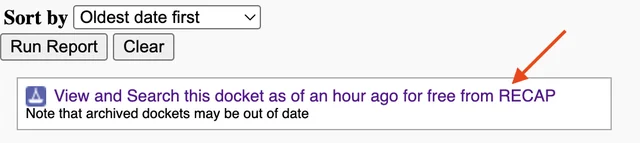
PACER is moving towards multi-factor authentication (MFA). I've seen the popups, and I've heard from others that they have as well (although I've also heard that the rollout is being delayed due to "issues").
This new policy has induced some concerns among attorneys because, in many firms, multiple paralegals manage the PACER accounts for multiple attorneys, and use them for filings. The thought of juggling MFA codes under those circumstances sounds kind of horrifying.
But fear not! It's actually super simple if you are already using a password management app like 1Password, as many are.
You Should Probably Be Using a Password Management App Regardless
I am not a cyber-security expert by any stretch, but the common advice is that everyone should be using a password manager like 1Password to store their passwords.
The basic problem is this: We all have roughly one zillion passwords, and passwords tend to leak from web sites when they suffer security breaches. If you use the same password on multiple sites and one site leaks it, there are plenty of people out there who will try to use that same password with your user name or e-mail address in other places.
There is no way to remember unique passwords for each site and it is completely impractical to write them all down and carry them around with you. A password manager solves that problem, allowing you to use unique and random password for each site or service. All you have to do is remember a single password to get into the password manager.
In my view, it's tough to justify not using a password manager, especially if you are in a situation where multiple attorneys need to share PACER credentials with multiple paralegals. A random unencrypted excel spreadsheet full of passwords on the firm's network strikes me as much more risky.
The Password Manager Does the MFA for You
Once you have a password manager set up, it can handle MFA for you on PACER and any other site that you want, instantly and potentially without having to cut-and-paste anything. Best of all, it works for anyone who has access to your credentials in the password manager. 1Password, for example, lets you set up detailed controls for who in a firm has access to which passwords.
Below are quick instructions for how to set instant MFA up with 1Password, although this likely works with other password managers as well.
Once MFA is required on your PACER account, you will get this prompt when logging in:
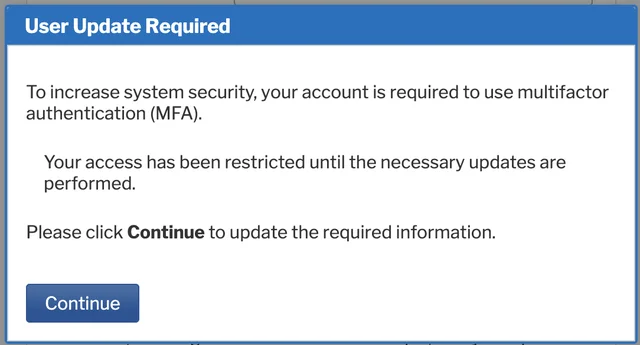
Click through and fill in your password like normal, until you arrive at this screen:
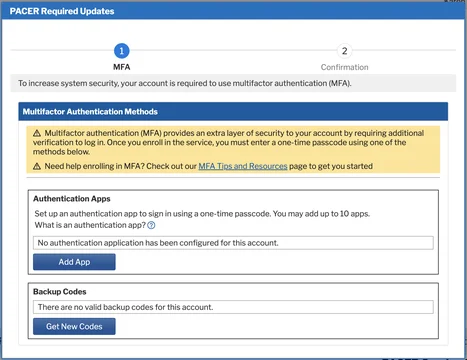
Click "Add App." PACER will send a security code to your registered e-mail address. Copy that code from your e-mail over to PACER, and PACER will prompt you to name the security app:
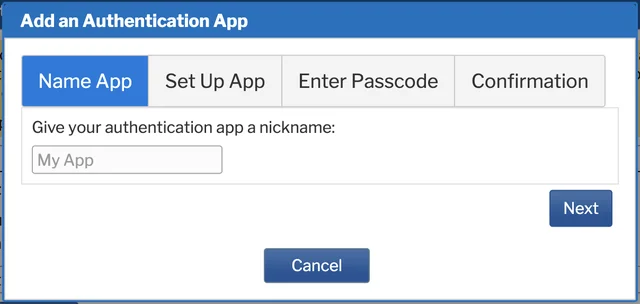
Type "1Password" and hit Next. You'll get this screen:
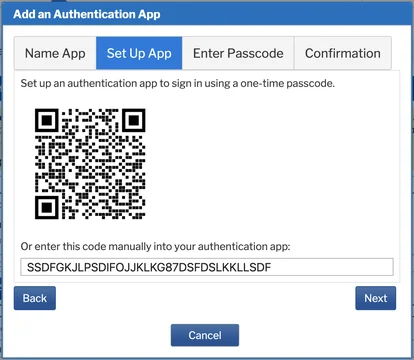
Copy that code on the bottom (from PACER, not from the screenshot above, which uses a fake code).
Go into 1Password, and find your PACER login. Click "edit," "+ add more", and "one-time password." Paste the code in where it says "one-time password code." Click "save."
Finally, copy the "one-time password" that 1Password generates and paste it into PACER:
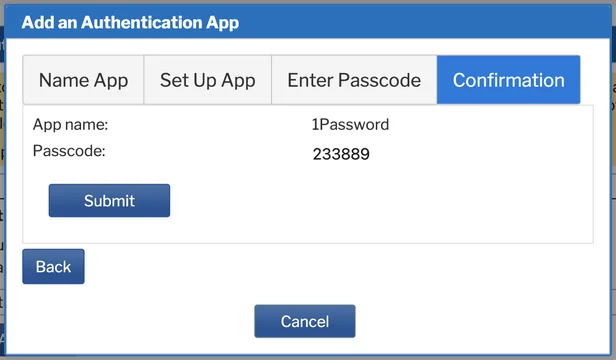
Click "submit," and you're done! Everyone in your firm who has access to your password in 1Password can now access your PACER account, just like before. The MFA code will auto-fill so fast that you often won't even see the prompt. Happy filing!
P.S. if you're wondering: No, I did not accidentally leak my authentication QR code or any one-time codes in the above screenshots. Those screenshots use fake data and a fake QR code to protect the innocent (me).
If you enjoyed this post, consider subscribing to receive free e-mail updates about new posts.